


|
|

After installation, all CDDM servers are enabled but not yet running. To obtain the desired configuration you must manually start each server, starting with the Master Server. This chapter describes how to make sure the CDDM software is installed and working using the Cisco Service Manager (CSM) and tools provided with your operating system.
Testing the installation consists of the following steps:
Step 1 Log in and make sure that services provided by your operating system do not use same ports as those the CDDM servers require. This step may require disabling native servers. For details, see the section "Checking the CDDM Default Ports."
Step 2 Start the Cisco Service Manager (see the section "Starting the Cisco Service Manager (CSM)").
Step 3 Make sure the Master Server is running. If the Master Server is stopped, the other CDDM servers will not work. To start the Master Server, see the section "Starting the Master Server."
Step 4 Configure the DNS server for caching-only operation (see the section "Testing the Cisco DNS Server for Caching-only Service").
Step 5 Configure and test the DNM (Domain Name Manager) server to perform zone transfers on port 705 (for the local DNS server) and to allow users to log into an administrator's account (see the section "Testing the Local DNM Server"). You can skip this step if you are testing a CSS1000 installation.
Step 6 If you installed CSS1000 or just the DNM Browser, connect to a remote DNM server with the DNM Browser (see the section "Testing the Remote DNM Server").
Step 7 Configure and test the DHCP service (see the section "Testing the DHCP Service").
For the purposes of this guide, you must disable native services that are using the ports required by CDDM services (see Table 4-1).
| Server | Port Number |
|---|---|
Master Server | |
DNS | |
DNM control | |
DNM zone transfer | |
DHCP/BootP | |
Syslog | |
NTP | |
TFTP |
Although you can configure CDDM servers to use ports other than those in Table 4-1, the procedures in this guide assume the servers use these ports.
The following procedures show the commands to enter to check for other services running on the ports.
Step 1 Log in as root or equivalent account.
Step 2 Make sure the Master Server is not running. If the Master Server is running, you may have difficulty telling if any other server is using the same port.
(a) Find out if the Master Server is running by checking for the "netcontrol" process:
ps -ef | grep netc
If the Master Server is installed correctly, a line similar to the following appears:
root 349 1 0 16:51:28 pts/3 0:00 ./netcntrl.exe
install_dir/CSCOcddm/bin/stop_netcontrol
where install_dir is the directory in which you installed CDDM.
Step 3 For each server listed in Table 4-1, find out if existing servers already use the corresponding port numbers:
netstat -an | grep portnumber
For example, to make sure the native DNS server is not running, check port 53:
netstat -an | grep 53
Step 4 Find out if the native Syslog service is not running:
ps -ef | grep syslogd
Step 5 If any server uses a port required by a CDDM server, disable it or, if possible, change the port it uses. For details, see your operating system's documentation.
Step 1 Log in as Administrator.
Step 2 Make sure the Master Server is not running. If the Master Server is running, you may have difficulty telling if any other server is using the same port.
(a) Start the CSM and check the color of the circle next to the Master Server icon. If the circle is green, the server is running.
Step 3 If any Windows NT server uses a port required by a CDDM server, disable it or, if possible, change the port it uses. For details, see your Windows NT documentation.
The CSM provides access to all CDDM server configuration parameters, and lets you turn each server on or off.
To start the CSM on Windows NT systems, double-click the Csm32 icon in the installation directory, or choose Cisco Service Manager from the Cisco Server Suite program group in the Start menu.
To start the CSM on Solaris, HP-UX, or AIX systems, enter the following command:
install_dir/CSCOcddm/bin/csm
where install_dir is the directory in which you installed CDDM.
The CSM 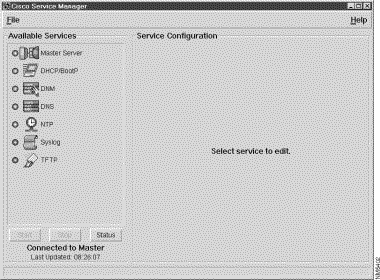 appears:
The Available Services list displays an icon for each CDDM service. Note that if you install the Cisco Server Suite 1000 instead of the CDDM, the DNM server does not appear in the Available Services list.
When a server is running or enabled (configured to start automatically), the CSM displays a small circle next to the server's icon. When the server is running, the circle is green. When the server is stopped, the circle is red. When the server is disabled, no circle appears next to the service icon. For information on starting and stopping services, see the Cisco DNS/DHCP Manager Administrator's Guide.
When you choose a server from the Available Services list, the CSM displays the corresponding configuration editor screen. Two buttons below the Available Services list let you stop, start, or restart the chosen service. The Status button checks the services to see if they are running and updates the states of the service icons.
The Master Server must be running before you can use the CDDM servers. The Master Server determines if each server starts automatically, or if you must start it manually.
If the Master Server is already running, the CSM displays a small green circle next to the Master Server icon in the Available Services list. If the circle is red, or if there is no circle next to the Master Server icon, you must start the Master Server.
To start the Master Server:
Step 1 Start the CSM:
Step 2 Choose Master Server from the CSM's Available Services list.
The Master Server configuration editor appears. If the CSM displays a Restart button below the Available Services list, the Master Server is already running. Otherwise, the CSM displays a Start button.
Step 3 Click Start. The Start button changes to a Restart button and a green circle appears next to the Master Server icon.
For more information on the Master Server, see the Cisco DNS/DHCP Manager Administrator's Guide.
By default, the Cisco DNS server is configured as a caching-only name server. As a caching-only name server, your system is authoritative only for the domains localhost and 127.0.0.1 (the loopback address). This minimal configuration allows your system to access local services by using the host name, localhost.
If a DNS resolver asks your DNS server for information about any other host, and your system has access to the root name servers, your DNS server will locate the appropriate authoritative name server, cache the DNS response, and return the answer to the resolver. By caching the answer, your DNS server can answer subsequent queries for the same information quickly, without contacting any other name servers.
To make sure the Cisco DNS server is enabled:
Step 1 Choose DNS from the list of Available Services in the CSM.
Step 2 Select the StartUp tab.
Step 3 In the StartUp tab, select the Basic tab.
Step 4 If the DNS server is not configured to start automatically, set the Start field to AUTOMATIC, then restart the Master Server:
(a) Choose Master Server from the Available Services list.
(b) Click Start or Restart. If you start or restart without first saving changes, the CSM presents a dialog that says the changes were saved. When the save confirmation appears, click OK. If you are restarting, the CSM warns you that stopping the Master Server will stop the CDDM 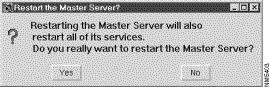 services.
(c) Click Yes in the confirmation dialog box. When the Master Server starts, the circle next to the DNS server icon turns green.
Step 5 Make sure the Cisco DNS server can resolve the names "localhost" and "127.0.0.1":
Before you start managing zone data with the DNM server, make sure the DNM server communicates over the appropriate port numbers. You can skip this procedure if your system is running the CSS1000.
Step 1 Choose DNM from the CSM's Available Services list.
Step 2 Select the StartUp tab.
Step 3 In the StartUp tab, select the Basic tab.
Step 4 If the DNM server is not configured to start automatically, choose AUTOMATIC from the Start pull-down menu.
Step 1 Choose DNM from the CSM's Available Services list.
Step 2 Select the Users tab.
Step 3 Type admin in the User Name field.
Step 4 Type admin in the Password field.
The password characters are not echoed.
Step 5 Click Add. The list of users now includes the "admin" entry.
When you run a DNS server on the same system as your DNM server, you must configure the DNM server to transfer zone data on port 705 instead of port 53 because the DNS server "listens" on port 53 for name service requests. For detailed information, refer to Chapter 1, "Cisco DNS/DHCP Manager Overview."
 | Caution If you configure the DNM server to perform zone transfers on port 705, you must also be able to configure your DNS servers to request zone transfers on port 705. Although the Cisco DNS server lets you specify a port number for specific zones, many other vendors' DNS servers do not. For information on specifying the port on which the DNS server requests zone transfers, see the exercises in Chapter 5, "Creating a New Domain," and the DNS chapter in the Cisco DNS/DHCP Manager Administrator's Guide. |
To configure the DNM server to perform zone transfers on port 705:
Step 1 Choose DNM in the Available Services list.
Step 2 Select the StartUp tab.
Step 3 In the StartUp tab, select the Parameters tab.
Step 4 If the Nameserver-port is not 705, check the Nameserver-port checkbox, and enter 705 in the Nameserver-port field.
Step 5 Save the configuration by choosing Save Configuration from the File menu, and click OK to confirm the save.
After saving your DNM service configuration changes, restart the Master Server:
Step 1 Choose Master Server from the Available Services list. If the Master Server is already running, the CSM displays a Restart button below the Available Services list.
Step 2 Click Start or Restart. If you start or restart without first saving changes, the CSM presents a dialog that says the changes were saved. When the save confirmation appears, click OK.
Step 3 Click Yes in the confirmation dialog box.
The DNM Browser lets you manipulate DNS zone data by connecting to a DNM server. When you connect to a DNM server, you must enter the user name and password of a valid DNM account, such as the one you created earlier (see "Adding the "admin" User Account"). Test your DNM account by connecting a DNM Browser to your DNM server.
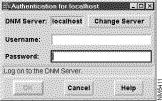 dialog:
 Step 2 Enter your DNM user account name and password in the appropriate fields, and click OK. The main DNM Browser window appears. Unless you connected to a DNM server that already manages your zones, the DNM Browser only displays an icon for the top-level domain, ("."). This step verifies that the DNM server is accepting DNM commands on port 704 as it should.
If you are verifying a CSS1000 installation, you do not have a local DNM server. The following procedure assumes that you have an account on a remote DNM server and that the server is running.
To verify that your local DNM Browser can communicate with a remote DNM server:
dialog: Step 2 Click Change Server to specify the host name or IP address of the remote DNM server.
Step 3 Enter your DNM user account name and password in the appropriate fields, and click OK. The main DNM Browser window appears. Unless you connected to a DNM server that already manages your zones, the DNM Browser only displays an icon for the top-level domain, ("."). This step verifies that the DNM server is accepting DNM commands on port 704 as it should.
In this section, you will learn how to manage DHCP database entries.
To test the DHCP service:
Step 1 In the CSM, choose DHCP/BootP from the Available Services list.
Step 2 Select the StartUp tab. The Basic tab opens.
Step 3 If the Start pull-down menu is set to AUTOMATIC, start the DHCP/BootP server by clicking Start under the Available Services list. When the DHCP/BootP server is running, the circle next to the DHCP/BootP service icon turns green.
Step 4 If the DHCP/BootP server is not configured to start automatically, choose AUTOMATIC from the Start pull-down menu, and restart the Master Server:
(a) Choose Master Server from the Available Services list. If the Master Server is already running, the CSM displays a Restart button below the Available Services list.
(b) Click Start or Restart. If you start or restart without first saving changes, the CSM presents a dialog that says the changes were saved. When the save confirmation appears, click OK.
(c) Click Yes in the Restart confirmation dialog box. When the Master Server restarts, a green circle appears next to the DHCP/BootP server icon to indicate it is running.
In this exercise, you will create a DHCP server database entry that defines a pool of IP addresses that the DHCP server will offer to clients.
Step 1 Choose DHCP/BootP from the Available Services list.
Step 2 If necessary, widen the CSM window so the Entries with Inheritance control buttons appear in the DHCP Config tab.
Step 3 Examine the default lease values that all DHCP entries inherit:
(a) Choose Global Defaults in the Entries with Inheritance list.
(b) Choose Lease Info from the Group option menu in the Option Tags group.
(c) Examine the lease parameters. When you add entries to the DHCP database, they inherit the Global Defaults entry's lease parameters. You can change the Global Defaults entry's lease values or you can override them by specifying lease values in the new entries.
Step 4 Set up a pool of IP addresses as a DHCP configuration:
(a) Type host in the Entries with Inheritance field (below the list), and click 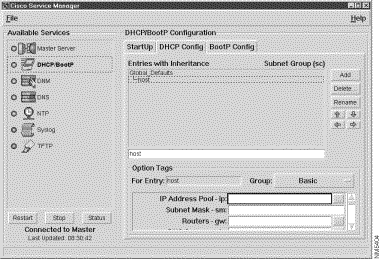 Add.
Add.
(b) Choose Basic from the Group option menu in the Option Tags group.
(c) Enter the following parameter values:
| Parameter | Option Tag | Value |
IP address pool | 10.1.1.10-15 | |
Subnet mask | 255.255.255.0 | |
Routers | 10.1.1.254 | |
DNS servers | 10.1.1.1 |
(d) Choose Save Configuration from the File menu, and click OK in the save confirmation dialog.
Step 5 Restart the DHCP/BootP service by clicking Restart.
Step 6 Query the DHCP server with the dhcpstat utility:
where install_dir is the directory in which you installed CDDM. The output should appear as follows:
Command:  dhcp show all


    List DHCP Client pools

    Subnet 10.1.1.0:

      Free Clients:

        IP Addr=10.1.1.15, State=Free, No Lease

        IP Addr=10.1.1.14, State=Free, No Lease

        IP Addr=10.1.1.13, State=Free, No Lease

        IP Addr=10.1.1.12, State=Free, No Lease

        IP Addr=10.1.1.11, State=Free, No Lease

        IP Addr=10.1.1.10, State=Free, No Lease

      Dirty Clients:

      Bound Clients:

      Offered Clients:

      Pinging Clients:

    End of list DHCP clients pools
You can use the DHCP/BootP service's inheritance feature to avoid entering identical parameter values for multiple entries. In this exercise you will create an entry named "common" from which the "host" entry can inherit its subnet mask, routers, and DNS server parameters.
Step 1 Create an entry from which other entries can inherit common configuration parameters:
(a) In the CSM, choose DHCP/BootP from the Available Services list.
(b) In the DHCP Config tab, type common in the Entries with Inheritance field, and click Add.
(c) Choose Basic from the Group option menu in the Option Tags group.
(d) Enter the following parameters:
| Parameter | Option Tag | Value |
Subnet mask | 255.255.255.0 | |
Routers | 10.1.1.254 | |
DNS Servers | 10.1.1.1 |
Step 2 Make "host" inherit the "common" entry's parameters by "indenting" it under the common entry:
(a) Select "common" in the Entries with Inheritance list, and click the "up" arrow until it appears in the list before the "host" entry.
(b) Select "host" in the Entries with Inheritance list.
(c) Click the "right" arrow to indent "host" under "common."
Step 3 Remove "host" entry's the subnet mask, routers, and DNS server:
(a) Make sure "host" is highlighted in the Entries with Inheritance list.
(b) Choose Basic from the Group option menu.
(c) Clear the Subnet Mask, Routers, and DNS Servers fields.
(d) Choose Save Configuration from the File menu, and click OK in the save confirmation dialog.
Step 4 Query the DHCP server with the dhcpstat utility to verify that the new host entry offers the same configuration data as before.
where install_dir is the directory in which you installed CDDM. The output should appear as follows:
Command:  dhcp show all

    List DHCP Client pools

    Subnet 10.1.1.0:

      Free Clients:

        IP Addr=10.1.1.15, State=Free, No Lease

        IP Addr=10.1.1.14, State=Free, No Lease

        IP Addr=10.1.1.13, State=Free, No Lease

        IP Addr=10.1.1.12, State=Free, No Lease

        IP Addr=10.1.1.11, State=Free, No Lease

        IP Addr=10.1.1.10, State=Free, No Lease

      Dirty Clients:

      Bound Clients:

      Offered Clients:

      Pinging Clients:

    End of list DHCP clients pools
If you have a DHCP client with a known hardware address, you may want to configure the DHCP server to reserve a specific IP address for that host. DHCP entries that associate IP addresses with specific hardware addresses are called "static" entries. In this exercise, you will create a static entry that reserves the IP address 10.1.1.16 for a host with the hardware address 001800201020.
To configure a static DHCP entry:
Step 1 Highlight the "host" entry in the Entries with Inheritance list.
Step 2 Type static1 in the Entries with Inheritance field, and click Add.
The "static1" entry appears in the Entries with Inheritance list at the same inheritance level as the "host" entry, which indicates that it also inherits parameters from the "common" entry.
Step 3 Choose Basic from the Group option menu.
Step 4 Enter the following parameters:
| Parameter | Option Tag | Value |
IP address | ip | 10.1.1.16 |
Hardware Address type | ht | 1 |
Hardware address | ha | 001800201020 |
Step 5 Choose Save Configuration from the File menu, and click OK in the save confirmation dialog.
Step 6 Restart the DHCP/BootP service by clicking Restart.
Step 7 Query the DHCP server for information about the reserved IP address with the dhcpstat utility.
   Command:  dhcp show client 10.1.1.16


       DHCP Client: 10.1.1.16

           IP Address=10.1.1.16

           State=Bound (static)

           Subnet Mask=255.255.255.0

           Default Gateway=10.1.1.254

           Hardware Address=001800201020

           Client ID=(none)

           Lease=0 secs (No Lease)

           Hostname=static1
If you followed the steps in this chapter and observed the described behavior, you have verified that the DNS, DNM, and DHCP/BootP servers are working. In the next chapter, you will create a new domain and make sure that the link between the DNM and DNS servers is working.
Posted: Tue Dec 17 18:40:36 PST 2002
All contents are Copyright © 1992--2002 Cisco Systems, Inc. All rights reserved.
Important Notices and Privacy Statement.