
 |  |
18.3. Scripting Styles
The crux of DHTML is the ability to use JavaScript to dynamically change the style attributes applied to individual elements within a document. The DOM Level 2 standard defines an API that makes this quite easy to do. In Chapter 17, we saw how to use the DOM API to obtain references to document elements either by tag name or ID or by recursively traversing the entire document. Once you've obtained a reference to the element whose styles you want to manipulate, you use the element's style property to obtain a CSS2Properties object for that document element. This JavaScript object has JavaScript properties corresponding to each of the CSS1 and CSS2 style attributes. Setting these properties has the same effect as setting the corresponding styles in a style attribute on the element. Reading these properties returns the CSS attribute value, if any, that was set in the style attribute of the element. It is important to understand that the CSS2Properties object you obtain with the style property of an element specifies only the inline styles of the element. You cannot use the properties of the CSS2Properties object to obtain information about the style-sheet styles that apply to the element. By setting properties on this object, you are defining inline styles that effectively override style-sheet styles.
Consider the following script, for example. It finds all <img> elements in the document and loops through them looking for ones that appear (based on their size) to be banner advertisements. When it finds an ad, it uses the style.visibility property to set the CSS visibility attribute to hidden, making the ad invisible:
var imgs = document.getElementsByTagName("img");  // Find all images
for(var i = 0; i < imgs.length; i++) {            // Loop through them
    var img=imgs[i];
    if (img.width == 468 && img.height == 60)     // If it's a 468x60 banner...
        img.style.visibility = "hidden";          // hide it!
}
I've transformed this simple script into a "bookmarklet" by converting it to a javascript: URL and bookmarking it in my browser. I take subversive pleasure in using the bookmarklet to immediately hide distracting animated ads that won't stop animating. Here's a version of the script suitable for bookmarking:
javascript:a=document.getElementsByTagName("img");for(n=0;n<a.length;n++){
i=a[n];if(i.width==468&&i.height==60)i.style.visibility="hidden";}void 0;
The bookmarklet is written with very compact code and is intended to be formatted on a single line. The javascript: at the beginning of this bookmarklet identifies it as a URL whose body is a string of executable content. The void 0 statement at the end causes the code to return an undefined value, which means that the browser continues to display the current web page (minus its banner ads, of course!). Without the void 0, the browser would overwrite the current web page with the return value of the last JavaScript statement executed.
18.3.1. Naming Conventions: CSS Attributes in JavaScript
Many CSS style attributes, such as font-family, contain hyphens in their names. In JavaScript, a hyphen is interpreted as a minus sign, so it is not possible to write an expression like:
element.style.font-family = "sans-serif";
Therefore, the names of the properties of the CSS2Properties object are slightly different from the names of actual CSS attributes. If a CSS attribute name contains one or more hyphens, the CSS2Properties property name is formed by removing the hyphens and capitalizing the letter immediately following each hyphen. Thus, the border-left-width attribute is accessed through the borderLeftWidth property, and you can access the font-family attribute with code like this:
element.style.fontFamily = "sans-serif";
There is one other naming difference between CSS attributes and the JavaScript properties of CSS2Properties. The word "float" is a keyword in Java and other languages, and although it is not currently used in JavaScript, it is reserved for possible future use. Therefore, the CSS2Properties object cannot have a property named float to correspond to the CSS float attribute. The solution to this problem is to prefix the float attribute with the string "css" to form the property name cssFloat. Thus, to set or query the value of the float attribute of an element, use the cssFloat property of the CSS2Properties object.
18.3.2. Working with Style Properties
When working with the style properties of the CSS2Properties object, remember that all values must be specified as strings. In a style sheet or style attribute, you can write:
position: absolute; font-family: sans-serif; background-color: #ffffff;
To accomplish the same thing for an element e with JavaScript, you have to quote all of the values:
e.style.position = "absolute";
e.style.fontFamily = "sans-serif";
e.style.backgroundColor = "#ffffff";
Note that the semicolons go outside the strings. These are just normal JavaScript semicolons; the semicolons you use in CSS style sheets are not required as part of the string values you set with JavaScript.
Furthermore, remember that all the positioning properties require units. Thus, it is not correct to set the left property like this:
e.style.left = 300;    // Incorrect: this is a number, not a string
e.style.left = "300";  // Incorrect: the units are missing
Units are required when setting style properties in JavaScript, just as they are when setting style attributes in style sheets. The correct way to set the value of the left property of an element e to 300 pixels is:
e.style.left = "300px";
If you want to set the left property to a computed value, be sure to append the units at the end of the computation:
e.style.left = (x0 + left_margin + left_border + left_padding) + "px";
As a side effect of appending the units, the addition of the unit string converts the computed value from a number to a string.
You can also use the CSS2Properties object to query the values of the CSS attributes that were explicitly set in the style attribute of an element or to read any inline style values previously set by JavaScript code. Once again, however, you must remember that the values returned by these properties are strings, not numbers, so the following code (which assumes that the element e has its margins specified with inline styles) does not do what you might expect it to:
var totalMarginWidth = e.style.marginLeft + e.style.marginRight;
Instead, you should use code like this:
var totalMarginWidth = parseInt(e.style.marginLeft) + parseInt(e.style.marginRight);
This expression simply discards the unit specifications returned at the ends of both strings. It assumes that both the marginLeft and marginRight properties were specified using the same units. If you exclusively use pixel units in your inline styles, you can usually get away with discarding the units like this.
Recall that some CSS attributes, such as margin, are shortcuts for other properties, such as margin-top, margin-right, margin-bottom, and margin-left. The CSS2Properties object has properties that correspond to these shortcut attributes. For example, you might set the margin property like this:
e.style.margin = topMargin + "px " + rightMargin + "px " +
                 bottomMargin + "px " + leftMargin + "px";
Arguably, it is easier to set the four margin properties individually:
e.style.marginTop = topMargin + "px";
e.style.marginRight = rightMargin + "px";
e.style.marginBottom = bottomMargin + "px";
e.style.marginLeft = leftMargin + "px";
You can also query the values of shortcut properties, but this is rarely worthwhile, because typically you must then parse the returned value to break it up into its component parts. This is usually difficult to do, and it is much simpler to query the component properties individually.
Finally, let me emphasize again that when you obtain a CSS2Properties object from the style property of an HTMLElement, the properties of this object represent the values of inline style attributes for the element. In other words, setting one of these properties is like setting a CSS attribute in the style attribute of the element: it affects only that one element, and it takes precedence over conflicting style settings from all other sources in the CSS cascade. This precise control over individual elements is exactly what we want when using JavaScript to create DHTML effects.
When you read the values of these CSS2Properties properties, however, they return meaningful values only if they've previously been set by your JavaScript code or if the HTML element with which you are working has an inline style attribute that sets the desired property. For example, your document may include a style sheet that sets the left margin for all paragraphs to 30 pixels, but if you read the leftMargin property of one of your paragraph elements, you'll get the empty string unless that paragraph has a style attribute that overrides the style sheet setting. Thus, although the CSS2Properties object is useful for setting styles that override any other styles, it does not provide a way to query the CSS cascade and determine the complete set of styles that apply to a given element. Later in this chapter we will briefly consider the getComputedStyle( ) method, which does provide this ability.
18.3.3. Example: Dynamic Bar Charts
When adding graphs and charts to your HTML documents, you typically implement them as static, inline images. Because the CSS layout model is heavily based on rectangular boxes, however, it is possible to dynamically create bar charts using JavaScript, HTML, and CSS. Example 18-3 shows how this can be done. This example defines a function makeBarChart( ) that makes it simple to insert bar charts into your HTML documents.
The code for Example 18-3 uses the techniques shown in Chapter 17 to create new <div> elements and add them to the document and the techniques discussed in this chapter to set style properties on the elements it creates. No text or other content is involved; the bar chart is just a bunch of rectangles carefully sized and positioned within another rectangle. CSS border and background-color attributes are used to make the rectangles visible.
The example includes some simple math to compute the height in pixels of each bar based on the values of the data to be charted. The JavaScript code that sets the position and size of the chart and its bars also includes some simple arithmetic to account for the presence of borders and padding. With the techniques shown in this example, you should be able to modify Example 18-2 to include a JavaScript function that dynamically creates windows of any specified size.
Figure 18-3 shows a bar chart created using the makeBarChart( ) function as follows:
<html>
<head>
<title>BarChart Demo</title>
<script src="BarChart.js"></script>
</head>
<body>
<h1>y = 2<sup>n</sup></h1>
<script>makeBarChart([2,4,8,16,32,64,128,256,512], 600, 250, "red");</script>
<i>Note that each bar is twice as tall as the one before it,
the result of rapid exponential growth.</i>
</body>
</html>
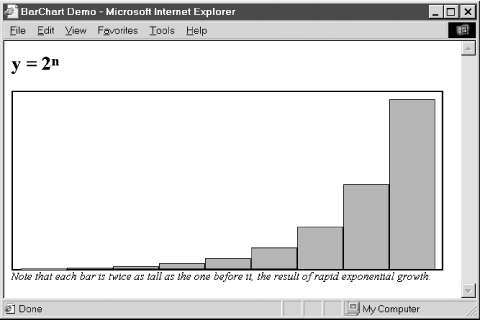
Figure 18-3. A dynamically created bar chart
Example 18-3. Dynamically creating bar charts
/**
 * BarChart.js:
 * This file defines makeBarChart( ), a function that creates a bar chart to
 * display the numbers from the data[] array. The chart is a block element
 * inserted at the current end of the document. The overall size of the chart
 * is specified by the optional width and height arguments, which include the
 * space required for the chart borders and internal padding. The optional
 * barcolor argument specifies the color of the bars. The function returns the
 * chart element it creates, so the caller can further manipulate it by
 * setting a margin size, for example.
 *
 * Import this function into an HTML file with code like this:
 *    <script src="BarChart.js"></script>
 * Use this function in an HTML file with code like this:
 *    <script>makeBarChart([1,4,9,16,25], 300, 150, "yellow");</script>
 **/
function makeBarChart(data, width, height, barcolor) {
    // Provide default values for the optional arguments
    if (!width) width = 500;
    if (!height) height = 350;
    if (!barcolor) barcolor = "blue";

    // The width and height arguments specify the overall size of the
    // generated chart. We have to subtract the border and padding
    // sizes to get the size of the element we create.
    width -= 24;   // Subtract 10px padding and 2px left and right border
    height -= 14;  // Subtract 10px top padding and 2px top and bottom border

    // Now create an element to hold the chart. Note that we make the chart
    // relatively positioned so that it can have absolutely positioned children,
    // but it still appears in the normal element flow.
    var chart = document.createElement("DIV");
    chart.style.position = "relative";       // Set relative positioning
    chart.style.width = width + "px";        // Set the chart width
    chart.style.height = height + "px";      // Set the chart height
    chart.style.border = "solid black 2px";  // Give it a border
    chart.style.paddingLeft = "10px";        // Add padding on the left,
    chart.style.paddingRight = "10px";       // on the right,
    chart.style.paddingTop = "10px";         // and on the top,
    chart.style.paddingBottom = "0px";       // but not on the bottom
    chart.style.backgroundColor = "white";   // Make the chart background white

    // Compute the width of each bar
    var barwidth = Math.floor(width/data.length);
    // Find the largest number in data[]. Note the clever use of Function.apply( ).
    var maxdata = Math.max.apply(this, data);
    // The scaling factor for the chart: scale*data[i] gives the height of a bar
    var scale = height/maxdata;

    // Now loop through the data array and create a bar for each datum
    for(var i = 0; i < data.length; i++) {
        var bar = document.createElement("div");   // Create div for bar
        var barheight = data[i] * scale;           // Compute height of bar
        bar.style.position = "absolute";           // Set bar position and size
        bar.style.left = (barwidth*i+1+10)+"px";   // Add bar border and chart pad
        bar.style.top = height-barheight+10+"px";  // Add chart padding
        bar.style.width = (barwidth-2) + "px";     // -2 for bar border
        bar.style.height = (barheight-1) + "px";   // -1 for bar top border
        bar.style.border = "solid black 1px";      // Bar border style
        bar.style.backgroundColor = barcolor;      // Bar color
        bar.style.fontSize = "1px";                // IE bug workaround
        chart.appendChild(bar);                    // Add bar to chart
    }

    // Now add the chart we've built to the document body
    document.body.appendChild(chart);

    // Finally, return the chart element so the caller can manipulate it
    return chart;
}
18.3.4. DHTML Animations
Some of the most powerful DHTML techniques you can achieve with JavaScript and CSS are animations. There is nothing particularly special about DHTML animations; all you have to do is periodically change one or more style properties of an element or elements. For example, to slide an image into place from the left, you increment the image's style.left property repeatedly, until it reaches the desired position. Or you can repeatedly modify the style.clip property to "unveil" the image pixel by pixel.
Example 18-4 contains a simple HTML file that defines a div element to be animated and a short script that changes the background color of the element every 500 milliseconds. Note that the color change is done simply by assigning a value to a CSS style property. What makes it an animation is that the color is changed repeatedly, using the setInterval( ) function of the Window object. (You'll need to use setInterval( ) or setTimeout( ) for all DHTML animations; you may want to refresh your memory by reading about these functions in the client-side reference section.) Finally, note the use of the modulo (remainder) operator % to cycle through the colors. Consult Chapter 5 if you've forgotten how that operator works.
Example 18-4. A simple color-changing animation
<!-- This div is the element we are animating -->
<div id="urgent"><h1>Red Alert!</h1>The Web server is under attack!</div>
<!-- This is the animation script for the element -->
<script>
var e = document.getElementById("urgent");         // Get Element object
var colors = ["white", "yellow", "orange", "red"]  // Colors to cycle through
var nextColor = 0;                                 // Position in the cycle
// Evaluate the following expression every 500 milliseconds
// to animate the background color of the div element
setInterval("e.style.backgroundColor=colors[nextColor++%colors.length];", 500);
</script>
Example 18-4 produces a very simple animation. In practice, CSS animations typically involve modifications to two or more style properties (such as top, left, and clip) at the same time. Setting up complex animations using a technique like that shown in Example 18-4 can get quite complicated. Furthermore, in order to avoid becoming annoying, animations should typically run for a short while and then stop, but there is no way to stop the animation produced by Example 18-4.
Example 18-5 shows a JavaScript file that defines a CSS animation function that makes it much easier to set up animations, even complex ones. The animateCSS( ) function defined in this example is passed five arguments. The first specifies the HTMLElement object to be animated. The second and third arguments specify the number of frames in the animation and the length of time each frame should be displayed. The fourth argument is a JavaScript object that specifies the animation to be performed. And the fifth argument is an optional function that should be invoked once when the animation is complete.
The fourth argument to animateCSS( ) is the crucial one. Each property of the JavaScript object must have the same name as a CSS style property, and the value of each property must be a function that returns a legal value for the named style. Every time a new frame of the animation is displayed, each of these functions is called to generate a new value for each of the style properties. Each function is passed the frame number and the total elapsed time and can use these arguments to help it return an appropriate value.
An example should make the use of animateCSS( ) much clearer. The following code moves an element up the screen while gradually uncovering it by enlarging its clipping region:
// Animate the element with id "title" for 40 frames of 50 milliseconds each
animateCSS(document.getElementById("title"), 40, 50,
           {  // Set top and clip style properties for each frame as follows:
               top:  function(f,t) { return 300-f*5 + "px"; }
               clip: function(f,t) {return "rect(auto "+f*10+"px auto auto)";},
           });
The next code fragment uses animateCSS( ) to move a Button object in a circle. It uses the optional fifth argument to animateCSS( ) to change the button text to "Done" when the animation is complete. Note that the element being animated is passed as the argument to the function specified by the fifth argument:
// Move a button in a circle, then change the text it displays
animateCSS(document.forms[0].elements[0], 40, 50,  // Button, 40 frames, 50ms
           {  // This trigonometry defines a circle of radius 100 at (200,200):
               left: function(f,t){ return 200 + 100*Math.cos(f/8) + "px"},
               top:  function(f,t){ return 200 + 100*Math.sin(f/8) + "px"}
           },
function(button) { button.value = "Done"; });
The code in Example 18-5 is fairly straightforward; all the real complexity is embedded in the properties of the animation object that you pass to animateCSS( ), as we'll see shortly. animateCSS( ) defines a nested function called displayNextFrame( ) and does little more than use setInterval( ) to arrange for displayNextFrame( ) to be called repeatedly. displayNextFrame( ) loops through the properties of the animation object and invokes the various functions to compute the new values of the style properties.
Note that because displayNextFrame( ) is defined inside animateCSS( ), it has access to the arguments and local variables of animateCSS( ), even though displayNextFrame( ) is invoked after animateCSS( ) has already returned! This works even if animateCSS( ) is called more than once to animate more than one element at a time. (If you don't understand why this works, you may want to review Section 11.4.)
Example 18-5. A framework for CSS-based animations
/**
 * AnimateCSS.js:
 * This file defines a function named animateCSS( ), which serves as a framework
 * for creating CSS-based animations. The arguments to this function are:
 *
 *     element: The HTML element to be animated.
 *     numFrames: The total number of frames in the animation.
 *     timePerFrame: The number of milliseconds to display each frame.
 *     animation: An object that defines the animation; described below.
 *     whendone: An optional function to call when the animation finishes.
 *               If specified, this function is passed element as its argument.
 *
 * The animateCSS( ) function simply defines an animation framework. It is
 * the properties of the animation object that specify the animation to be
 * done. Each property should have the same name as a CSS style property. The
 * value of each property must be a function that returns values for that
 * style property.  Each function is passed the frame number and the total
 * amount of elapsed time, and it can use these to compute the style value it
 * should return for that frame.  For example, to animate an image so that it
 * slides in from the upper left, you might invoke animateCSS as follows:
 *
 *  animateCSS(image, 25, 50,  // Animate image for 25 frames of 50ms each
 *             {  // Set top and left attributes for each frame as follows:
 *               top: function(frame,time) { return frame*8 + "px"; },
 *               left: function(frame,time) { return frame*8 + "px"; }
 *             });
 *
 **/
function animateCSS(element, numFrames, timePerFrame, animation, whendone) {
    var frame = 0;  // Store current frame number
    var time = 0;   // Store total elapsed time

    // Arrange to call displayNextFrame( ) every timePerFrame milliseconds.
    // This will display each of the frames of the animation.
    var intervalId = setInterval(displayNextFrame, timePerFrame);

    // The call to animateCSS( ) returns now, but the line above ensures that
    // the nested function defined below will be invoked once for each frame
    // of the animation.  Because this function is defined inside
    // animateCSS( ), it has access to the arguments and local variables of
    // animateCSS( ) even though it is invoked after that function has returned!
    function displayNextFrame( ) {
        if (frame >= numFrames) {             // First, see if we're done
            clearInterval(intervalId);        // If so, stop calling ourselves
            if (whendone) whendone(element);  // Invoke whendone function
            return;                           // And we're finished
        }

        // Now loop through all properties defined in the animation object
        for(var cssprop in animation) {
            // For each property, call its animation function, passing the
            // frame number and the elapsed time. Use the return value of the
            // function as the new value of the corresponding style property
            // of the specified element. Use try/catch to ignore any
            // exceptions caused by bad return values.
            try {
                element.style[cssprop] = animation[cssprop](frame, time);
            } catch(e) {}
        }

        frame++;               // Increment the frame number
        time += timePerFrame;  // Increment the elapsed time
    }
}
|  | |
| 18.2. Element Positioning with CSS |  | 18.4. DHTML in Fourth-Generation Browsers |

Copyright © 2003 O'Reilly & Associates. All rights reserved.