|
|

Table Of Contents
Understanding Link Aggregation
EtherChannel Configuration Example
POS Channel Configuration Example
Understanding Encapsulation over EtherChannel or POS Channel
Configuring Encapsulation over EtherChannel or POS Channel
Encapsulation over EtherChannel Example
Monitoring and Verifying EtherChannel and POS
Configuring Link Aggregation
This chapter describes how to configure link aggregation for the ML-Series cards, both EtherChannel and packet-over-SONET/SDH (POS) channel. For additional information about the Cisco IOS commands used in this chapter, refer to the Cisco IOS Command Reference publication.
This chapter contains the following major sections:
•
Understanding Link Aggregation
•
•
Understanding Link Aggregation
The ML-Series card offers both EtherChannel and POS channel. Traditionally EtherChannel is a trunking technology that groups together multiple full-duplex IEEE 802.3 Ethernet interfaces to provide fault-tolerant high-speed links between switches, routers, and servers. EtherChannel is a logical aggregation of multiple Ethernet interfaces. EtherChannel forms a single higher bandwidth routing or bridging endpoint and was designed primarily for host-to-switch connectivity. The ML-Series card extends this link aggregation technology to bridged POS interfaces. POS channel is only supported with LEX encapsulation.
Link aggregation provides the following benefits:
•
•
•
The EtherChannel interface, consisting of multiple Fast Ethernet, Gigabit Ethernet, or POS interfaces, is treated as a single interface, which is called a port channel. You must perform all EtherChannel configurations on the EtherChannel interface (port channel) rather than on the individual member Ethernet interfaces. You can create the EtherChannel interface by entering the interface port-channel interface configuration command. Each ML100T-12 supports up to 7 Fast EtherChannel (FEC) interfaces or port channels (6 Fast Ethernet and 1 POS). Each ML1000-2 supports up to 2 Gigabit EtherChannel (GEC) interfaces or port channels (1 Gigabit Ethernet and 1 POS.)
EtherChannel connections are fully compatible with IEEE 802.1Q trunking and routing technologies. IEEE 802.1Q trunking can carry multiple VLANs across an EtherChannel.
Cisco's FEC technology builds upon standards-based IEEE 802.3 full-duplex Fast Ethernet to provide a reliable high-speed solution for the campus network backbone. FEC provides bandwidth scalability within the campus by providing up to 400-Mbps full-duplex Fast Ethernet on the ML100-12.
Cisco's GEC technology provides bandwidth scalability by providing 2-Gbps full-duplex aggregate capacity on the ML1000-2.
Cisco's POS channel technology provide bandwidth scalability by providing up to 48 STSs or VC4-16c of aggregate capacity on either the ML100-12 or the ML1000-2.
Caution
Caution
Note
Note
Note
Configuring EtherChannel
You can configure an FEC or a GEC by creating an EtherChannel interface (port channel) and assigning a network IP address. All interfaces that are members of a FEC or a GEC should have the same link parameters, such as duplex and speed.
To create an EtherChannel interface, perform the following procedure, beginning in global configuration mode:
For information on other configuration tasks for the EtherChannel, refer to the
Cisco IOS Configuration Fundamentals Configuration Guide.To assign Ethernet interfaces to the EtherChannel, perform the following procedure, beginning in global configuration mode:
EtherChannel Configuration Example
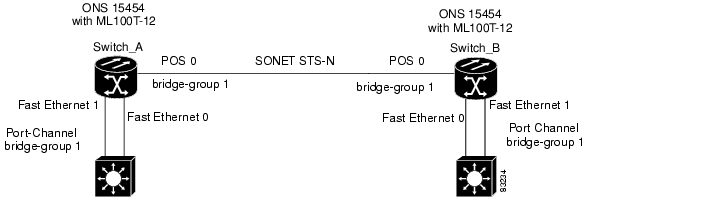
Figure 10-1 shows an example of encapsulation over EtherChannel. The associated commands are provided in Example 10-1 (Switch A) and Example 10-2 (Switch B).
Figure 10-1 Encapsulation over EtherChannel Example
Example 10-1 Switch A Configuration
hostname Switch A!bridge 1 protocol ieee!interface Port-channel 1no ip addressbridge-group 1hold-queue 150 in!interface FastEthernet 0no ip addresschannel-group 1!interface FastEthernet 1no ip addresschannel-group 1!interface POS 0no ip routingno ip addresscrc 32bridge-group 1pos flag c2 1Example 10-2 Switch B Configuration
hostname Switch B!bridge 1 protocol ieee!interface Port-channel 1no ip routingno ip addressbridge-group 1hold-queue 150 in!interface FastEthernet 0no ip addresschannel-group 1!interface FastEthernet 1no ip addresschannel-group 1!interface POS 0no ip addresscrc 32bridge-group 1pos flag c2 1!Configuring POS Channel
You can configure a POS channel by creating a POS channel interface (port channel) and optionally assigning an IP address. All POS interfaces that are members of a POS channel should have the same port properties and be on the same ML-Series card.
Note
To create a POS channel interface, perform the following procedure, beginning in global configuration mode:
Caution
To assign POS interfaces to the POS channel, perform the following procedure, beginning in global configuration mode:
POS Channel Configuration Example
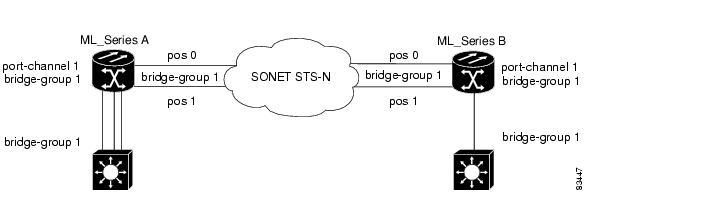
Figure 10-2 shows an example of POS channel configuration. The associated code is provided in Example 10-3 (Switch A) and Example 10-4 (Switch B).
Figure 10-2 POS Channel Example
Example 10-3 Switch A Configuration
bridge irbbridge 1 protocol ieee!!interface Port-channel1no ip addressno keepalivebridge-group 1!interface FastEthernet0no ip addressbridge-group 1!interface POS0no ip addresschannel-group 1crc 32pos flag c2 1!interface POS1no ip addresschannel-group 1crc 32pos flag c2 1Example 10-4 Switch B Configuration
bridge irbbridge 1 protocol ieee!!interface Port-channel1no ip addressno keepalivebridge-group 1!interface FastEthernet0no ip addressbridge-group 1!interface POS0no ip addresschannel-group 1crc 32pos flag c2 1!interface POS1no ip addresschannel-group 1crc 32pos flag c2 1Understanding Encapsulation over EtherChannel or POS Channel
When configuring encapsulation over FEC, GEC, or POS, be sure to configure IEEE 802.1Q on the port-channel interface, not its member ports. However, certain attributes of port channel, such as duplex mode, need to be configured at the member port levels. Also make sure that you do not apply protocol-level configuration (such as an IP address or a bridge group assignment) to the member interfaces. All protocol-level configuration should be on the port channel or on its subinterface. You must configure IEEE 802.1Q encapsulation on the partner system of the EtherChannel as well.
Configuring Encapsulation over EtherChannel or POS Channel
To configure encapsulation over the EtherChannel or POS channel, perform the following procedure, beginning in global configuration mode:
Encapsulation over EtherChannel Example
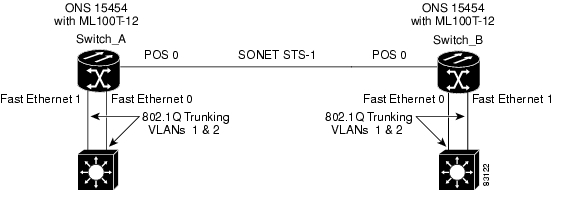
Figure 10-3 shows an example of encapsulation over EtherChannel. The associated code is provided in Example 10-5 (Switch A) and Example 10-6 (Switch B).
Figure 10-3 Encapsulation over EtherChannel Example
This encapsulation over EtherChannel example shows how to set up two ONS 15454s with ML100T-12 cards (Switch A and Switch B) to interoperate with two switches that also support IEEE 802.1Q encapsulation over EtherChannel. To set up this example, use the configurations in the following sections for both Switch A and Switch B.
Example 10-5 Switch A Configuration
hostname Switch A!bridge irbbridge 1 protocol ieeebridge 2 protocol ieee!interface Port-channel1no ip addresshold-queue 150 in!interface Port-channel1.1encapsulation dot1Q 1 nativebridge-group 1!interface Port-channel1.2encapsulation dot1Q 2bridge-group 2!interface FastEthernet0no ip addresschannel-group 1!interface FastEthernet1no ip addresschannel-group 1!interface POS0no ip addresscrc 32pos flag c2 1!interface POS0.1encapsulation dot1Q 1 nativebridge-group 1!interface POS0.2encapsulation dot1Q 2bridge-group 2Example 10-6 Switch B Configuration
hostname Switch B!bridge irbbridge 1 protocol ieeebridge 2 protocol ieee!interface Port-channel1no ip addresshold-queue 150 in!interface Port-channel1.1encapsulation dot1Q 1 nativebridge-group 1!interface Port-channel1.2encapsulation dot1Q 2bridge-group 2!interface FastEthernet0no ip addresschannel-group 1!interface FastEthernet1no ip addresschannel-group 1!interface POS0no ip addresscrc 32pos flag c2 1!interface POS0.1encapsulation dot1Q 1 nativebridge-group 1!interface POS0.2encapsulation dot1Q 2bridge-group 2!Monitoring and Verifying EtherChannel and POS
After FEC, GEC, or POS is configured, you can monitor its status using the show interfaces port-channel command.
Example 10-7 show interfaces port-channel Command
Router# show int port-channel 1Port-channel1 is up, line protocol is upHardware is FEChannel, address is 0005.9a39.6634 (bia 0000.0000.0000)MTU 1500 bytes, BW 200000 Kbit, DLY 100 usec,reliability 255/255, txload 1/255, rxload 1/255Encapsulation ARPA, loopback not setKeepalive set (10 sec)Unknown duplex, Unknown SpeedARP type: ARPA, ARP Timeout 04:00:00No. of active members in this channel: 2Member 0 : FastEthernet0 , Full-duplex, Auto SpeedMember 1 : FastEthernet1 , Full-duplex, Auto SpeedLast input 00:00:01, output 00:00:23, output hang neverLast clearing of "show interface" counters neverInput queue: 0/150/0/0 (size/max/drops/flushes); Total output drops: 0Queueing strategy: fifoOutput queue :0/80 (size/max)5 minute input rate 0 bits/sec, 0 packets/sec5 minute output rate 0 bits/sec, 0 packets/sec820 packets input, 59968 bytesReceived 0 broadcasts, 0 runts, 0 giants, 0 throttles0 input errors, 0 CRC, 0 frame, 0 overrun, 0 ignored0 watchdog, 0 multicast0 input packets with dribble condition detected32 packets output, 11264 bytes, 0 underruns0 output errors, 0 collisions, 0 interface resets0 babbles, 0 late collision, 0 deferred0 lost carrier, 0 no carrier0 output buffer failures, 0 output buffers swapped out.
Posted: Mon Sep 3 00:58:15 PDT 2007
All contents are Copyright © 1992--2007 Cisco Systems, Inc. All rights reserved.
Important Notices and Privacy Statement.