
4.18. Processes
At the heart of Unix lies the concept of a process. Understanding this concept will help you keep control of your login session as a user. If you are also a system administrator, the concept is even more important.
A process is an independently running program that has its own set of resources. For instance, we showed in an earlier section how you could direct the output of a program to a file while your shell continued to direct output to your screen. The reason that the shell and the other program can send output to different places is that they are separate processes.
On Unix, the finite resources of the system, like the memory and the disks, are managed by one all-powerful program called the kernel. Everything else on the system is a process.
Thus, before you log in, your terminal is monitored by a getty process. After you log in, the getty process dies (a new one is started by the kernel when you log out) and your terminal is managed by your shell, which is a different process. The shell then creates a new process each time you enter a command. The creation of a new process is called forking, because one process splits into two.
If you are using the X Window System, each process starts up one or more windows. Thus, the window in which you are typing commands is owned by an xterm process. That process forks a shell to run within the window. And that shell forks yet more processes as you enter commands.
To see the processes you are running, enter the command ps. Figure 4-4 shows some typical output and what each field means. You may be surprised how many processes you are running, especially if you are using X. One of the processes is the ps command itself, which of course dies as soon as the output is displayed.
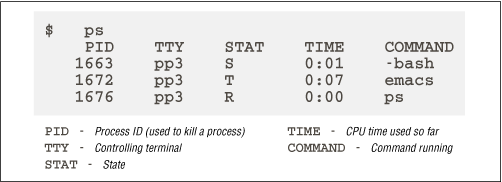
Figure 4-4. Output of ps command
The first field in the ps output is a unique identifier for the process. If you have a runaway process that you can't get rid of through Ctrl-C or other means, you can kill it by going to a different virtual console or X window and entering:
$ kill process-id
The TTY field shows which terminal the process is running on, if any. (Everything run from a shell uses a terminal, of course, but background daemons don't have a terminal.)
The STAT field shows what state the process is in. The shell is currently suspended, so this field shows an S. An Emacs editing session is running, but it's suspended using Ctrl-Z. This is shown by the T in its STAT field. The last process shown is the ps that is generating all this input; its state, of course, is R because it is running.
The TIME field shows how much CPU time the processes have used. Since both bash and Emacs are interactive, they actually don't use much of the CPU.
You aren't restricted to seeing your own processes. Look for a minute at all the processes on the system. The a option stands for all processes, while the x option includes processes that have no controlling terminal (such as daemons started at runtime):
$ ps ax | more
Now you can see the daemons that we mentioned in the previous section.
And here, with a breathtaking view of the entire Unix system at work, we end this chapter (the lines are cut off at column 76; if you want to see the command lines in their full glory, add the option -w to the ps command):
kalle@tigger: > ps aux
    USER   PID %CPU %MEM   VSZ   RSS  TT STAT  START   TIME COMMAND
at         724  0.0  0.2   824   348  ?  S    Mar 18   0:00 /usr/sbin/
bin        703  0.0  0.2   832   316  ?  S    Mar 18   0:00 /usr/sbin/
kalle      181  0.0  0.6  1512   856   1 S    Mar 18   0:00 -bash
kalle      230  0.0  0.4  1396   596   1 S    Mar 18   0:00 sh /usr/X1
kalle      231  0.0  0.1   808   256   1 S    Mar 18   0:00 tee /home/
kalle      234  0.0  0.4  1952   624   1 S    Mar 18   0:00 xinit /hom
kalle      238  0.0  0.4  1396   616   1 S    Mar 18   0:00 sh /home/k
kalle      242  0.0  3.8  6744  4876   1 S    Mar 18   0:43 kwm
kalle      246  0.0  3.3  6552  4272   1 S    Mar 18   4:48 /usr/local
kalle      255  0.0  0.0     0     0   1 Z    Mar 18   0:00 kaudioserv
kalle      256  0.0  3.0  6208  3844   1 S    Mar 18   0:02 kwmsound
kalle      257  0.0  5.1  8892  6596   1 S    Mar 18   0:11 kfm
kalle      258  0.0  3.3  6292  4320   1 S    Mar 18   0:02 krootwm
kalle      259  0.0  4.6  7848  5988   1 S    Mar 18   0:37 kpanel
kalle      260  0.0  3.6  6764  4688   1 S    Mar 18   0:06 kbgndwm
kalle      273  0.0  3.6  6732  4668   1 S    Mar 18   0:08 kvt -resto
kalle      274  0.0  3.6  6732  4668   1 S    Mar 18   0:11 kvt -resto
kalle      276  0.0  0.6  1536   892  p0 S    Mar 18   0:00 bash
kalle      277  0.0  0.6  1512   864  p1 S    Mar 18   0:00 bash
kalle    11752  0.1  9.8 14056 12604   1 S    Mar 20   3:35 xemacs
kalle    18738  0.2 16.4 26164 21088   1 S     01:14   1:03 netscape
kalle    18739  0.0  2.6 14816  3392   1 S     01:14   0:00 (dns helpe
kalle    29744  0.0  0.3   904   428  p0 R     09:24   0:00 ps -auxw
root         1  0.0  0.2   820   292  ?  S    Mar 18   0:06 init [2]
root         2  0.0  0.0     0     0  ?  SW   Mar 18   0:00 kflushd
root         3  0.0  0.0     0     0  ?  SW<  Mar 18   0:00 kswapd
root         8  0.0  0.2   804   264  ?  S    Mar 18   0:02 update (bd
root        55  0.0  0.2   816   328  ?  S    Mar 18   0:00 /sbin/kern
root        78  0.0  0.0     0     0  ?  Z    Mar 18   0:00 request-ro
root        96  0.0  0.3   832   408  ?  S    Mar 18   0:00 /usr/sbin/
root        98  0.0  0.3   932   448  ?  S    Mar 18   0:00 /usr/sbin/
root       167  0.0  0.2   824   288  ?  S    Mar 18   0:00 /usr/bin/g
root       182  0.0  0.6  1508   856   2 S    Mar 18   0:00 -bash
root       183  0.0  0.2   808   288   3 S    Mar 18   0:00 /sbin/ming
root       184  0.0  0.2   808   284   4 S    Mar 18   0:00 /sbin/ming
root       185  0.0  0.2   808   284   5 S    Mar 18   0:00 /sbin/ming
root       186  0.0  0.2   808   284   6 S    Mar 18   0:00 /sbin/ming
root       235  0.3 11.8 25292 15196  ?  S    Mar 18  19:19 /usr/X11R6
root       682  0.0  0.4  1076   556  ?  S    Mar 18   0:00 /usr/sbin/
root       684  0.0  0.3   948   484  ?  S    Mar 18   0:00 /usr/sbin/
root       707  0.0  0.3   860   440  ?  S    Mar 18   0:00 /usr/sbin/
root       709  0.0  0.3   896   452  ?  S    Mar 18   0:00 /usr/sbin/
root       712  0.0  0.5  1212   668  ?  S    Mar 18   0:00 /usr/sbin/
root       727  0.0  0.2   840   356  ?  S    Mar 18   0:00 /usr/sbin/
root       733  0.0  0.2   820   304  ?  S    Mar 18   0:00 /usr/sbin/
root       737  0.0  0.2   836   316  ?  S    Mar 18   0:00 /usr/sbin/
root       745  0.0  0.5  1204   708  ?  S    Mar 18   0:00 sendmail:
root       752  0.0  0.4  1772   592  ?  S    Mar 18   0:00 /opt/appli
wwwrun     718  0.0  0.5  1212   668  ?  S    Mar 18   0:00 /usr/sbin/
wwwrun     719  0.0  0.5  1212   652  ?  S    Mar 18   0:00 /usr/sbin/
wwwrun     720  0.0  0.5  1212   644  ?  S    Mar 18   0:00 /usr/sbin/
wwwrun     721  0.0  0.5  1212   644  ?  S    Mar 18   0:00 /usr/sbin/
wwwrun 722 0.0 0.5 1212 644 ? S Mar 18 0:00 /usr/sbin/ |  |  |
| 4.17. Programs That Serve You |  | 5. Essential System Management |

Copyright © 2001 O'Reilly & Associates. All rights reserved.